How to Connect Binance to Pilotbot
Step-by-step: create a Binance API key with the right permissions, restrict it by IP, and paste it into Pilotbot — safely, with no withdrawal access.
Pilotbot Team
Author
On this page
To let Pilotbot manage your Binance P2P ads, you create a Binance API key with the correct (limited) permissions and paste it into Pilotbot. The key lets the bot read the market and update your ad prices — it can never withdraw funds, because you never enable withdrawal.
Step 1 — Open API Management on Binance
Log in to your Binance account and go to API Management — from your profile menu, or via Binance's direct link to that page.
Step 2 — Create a New API Key
Click Create API and choose System Generated.
Step 3 — Name the Key
Give the key a name you'll recognise, for example Pilotbot, and click Next. Complete Binance's security verification if prompted.
Step 4 — Set the Permissions
Open Edit Restrictions for the new key and enable:
- Enable Spot & Margin Trading
- Enable Futures
Leave withdrawal permission off — Pilotbot does not need it and can never move your funds without it.
Step 5 — Restrict Access by IP
Choose Restrict access to trusted IPs only and paste the IP addresses that Pilotbot provides. This means the key only works from Pilotbot's servers, which is the safest setting.
Step 6 — Copy Your Keys
Binance shows your API Key and Secret Key. Save the Secret Key now — it is shown only once. If you lose it, you'll have to create a new key.
Step 7 — Paste the Keys into Pilotbot
Back in Pilotbot, open Add Account, select the Binance tab, paste your API Key and Secret Key, and click Confirm and add.
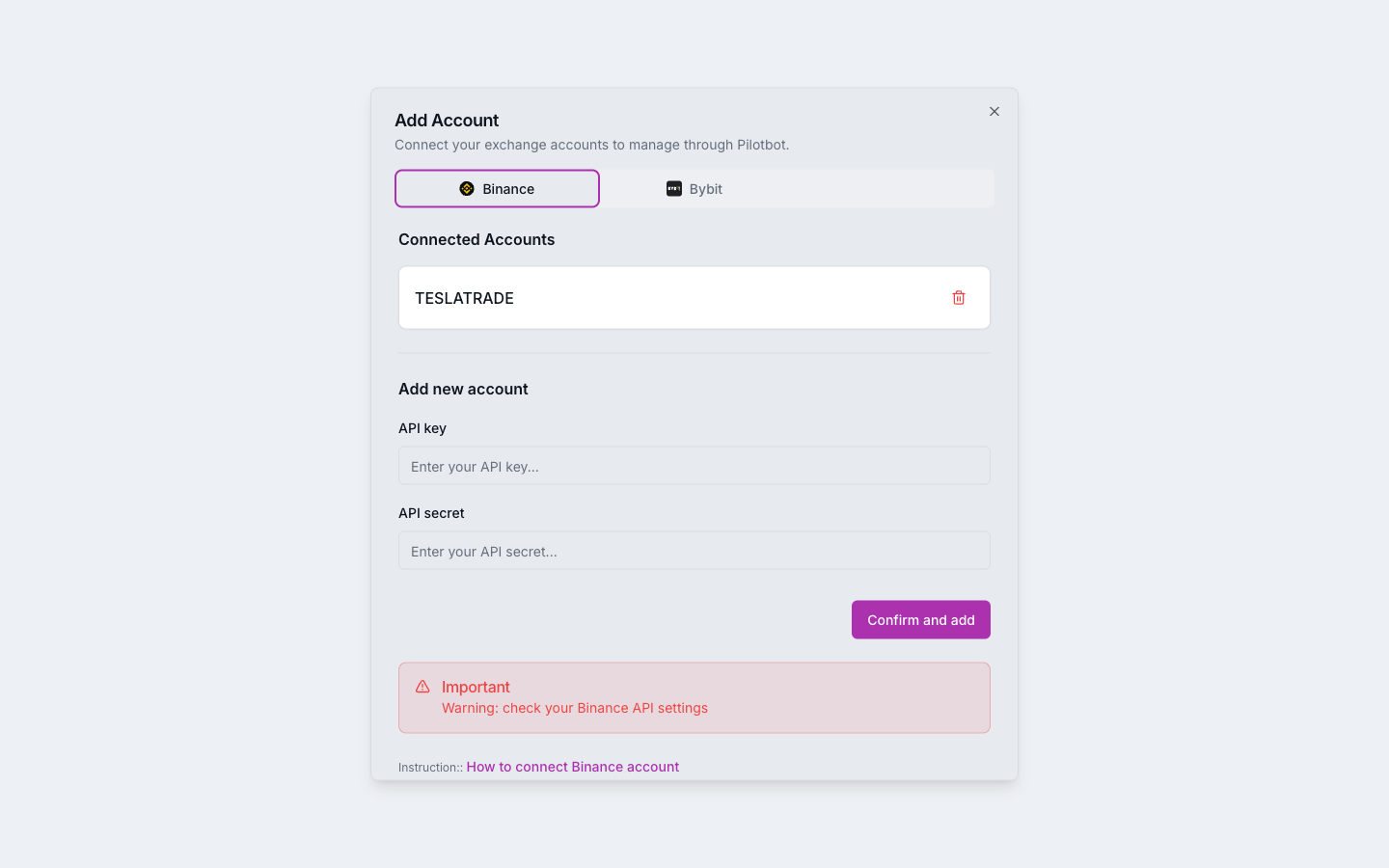
Your Binance account now appears in the sidebar. Next, set a strategy with the AI agent and turn the bot on for your ads.