How to Connect OKX to Pilotbot
Step-by-step: create an OKX API key with the right permissions and passphrase, restrict it by IP, and paste it into Pilotbot — with no withdrawal access.
Pilotbot Team
Author
On this page
OKX is temporarily unavailable in Pilotbot. OKX's P2P API requires separate merchant approval that Pilotbot doesn't currently have, so the OKX tab is hidden in the Add Account window. This article is kept for reference and will become active again once merchant access is restored — the connection steps below won't change.
When OKX becomes available again, connecting it works like Binance and Bybit: you create an OKX API key with limited permissions plus a passphrase, and paste it into Pilotbot. The key lets the bot read the market and manage your ad prices — it can never withdraw funds, because you never enable withdrawal.
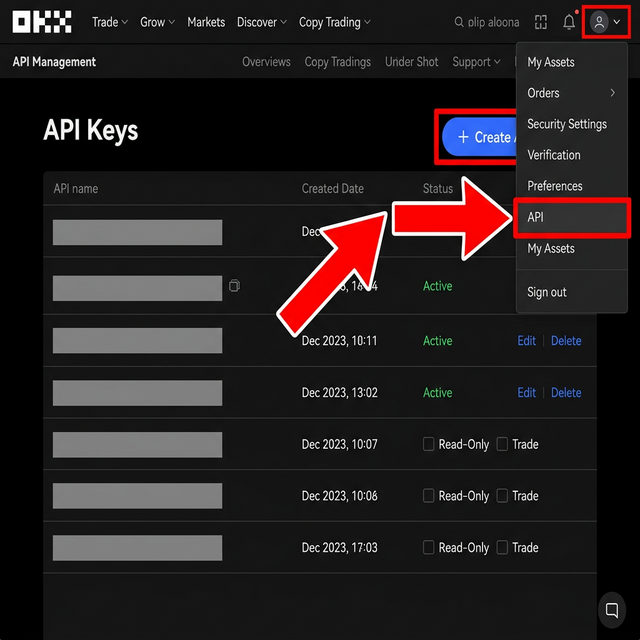
Step 1 — Open API Management on OKX
Log in to your OKX account and go to API (API Management) in your account settings.
Step 2 — Create a New API Key
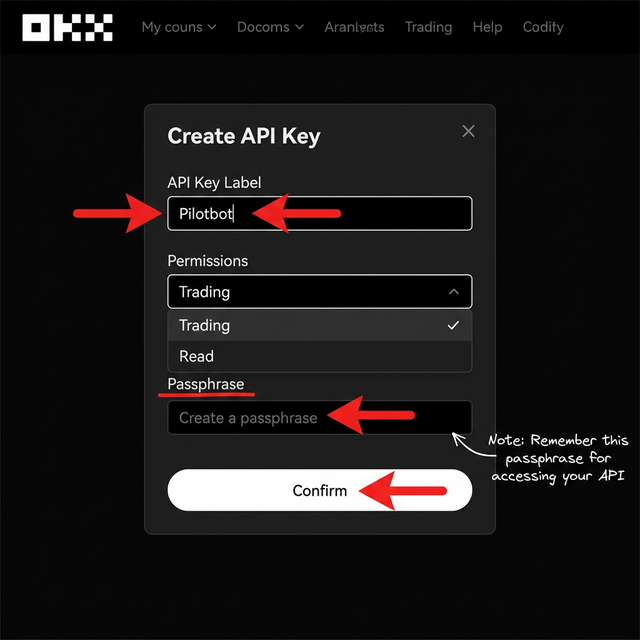
Click Create. Fill in:
- Label — a name you'll recognise, for example Pilotbot.
- Permissions — select which actions the key can perform (see Step 3).
- Passphrase — set a passphrase for the key. OKX requires this passphrase on every API request — save it, you will need it in Pilotbot along with the API Key and Secret Key.
Step 3 — Set Permissions and IP Whitelist
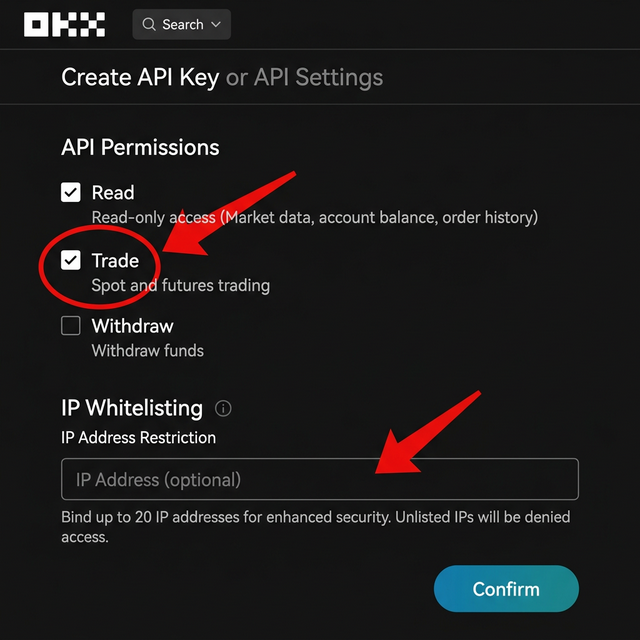
OKX splits permissions into three toggles:
- Read — enable (the bot needs this to see the market and your ads).
- Trade — enable (needed to update ad prices).
- Withdraw — leave off. Pilotbot never needs it and can never move your funds without it.
Add the IP addresses that Pilotbot provides under IP whitelisting, so the key only works from Pilotbot's servers.
Step 4 — Confirm the Passphrase
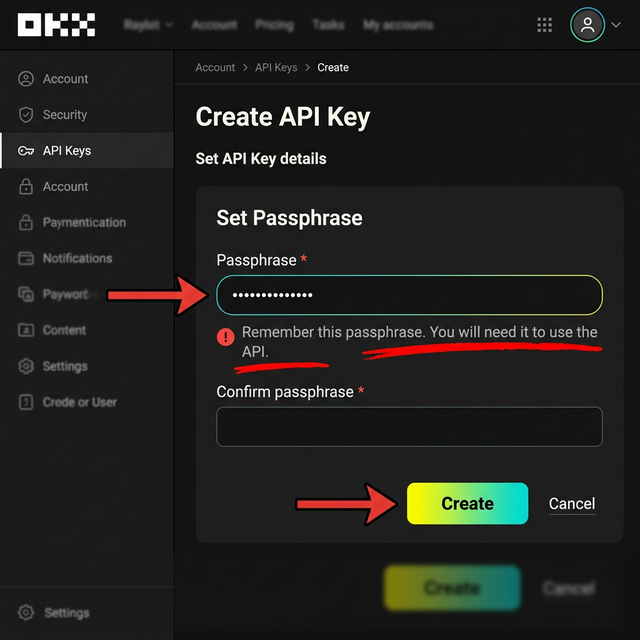
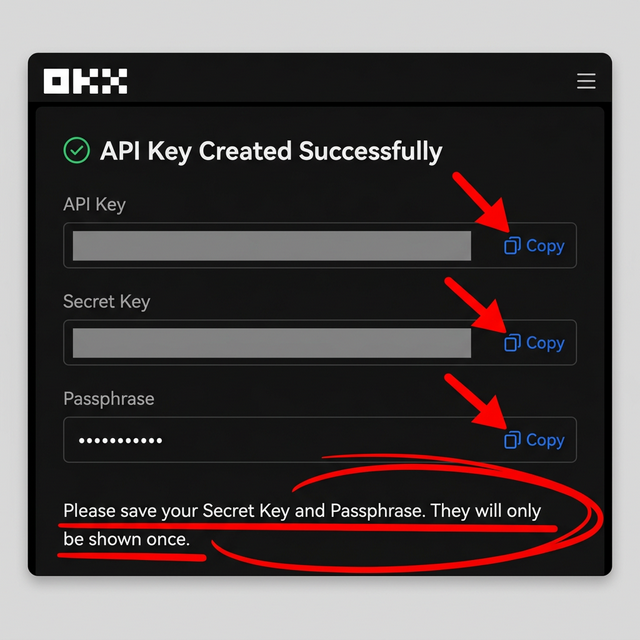
OKX asks you to set (or re-enter) the Passphrase for the key. Save it somewhere safe — you'll need to enter it again in Pilotbot, and OKX does not show it again after this step.
Step 5 — Verify
Confirm the key creation using OKX's security verification (email/SMS/authenticator code, depending on what you have enabled on your account).
Step 6 — Copy Your Keys
OKX shows your API Key, Secret Key, and your chosen Passphrase. Save all three now — the Secret Key is shown only once. If you lose it, you'll have to create a new key.
Step 7 — Paste the Keys into Pilotbot
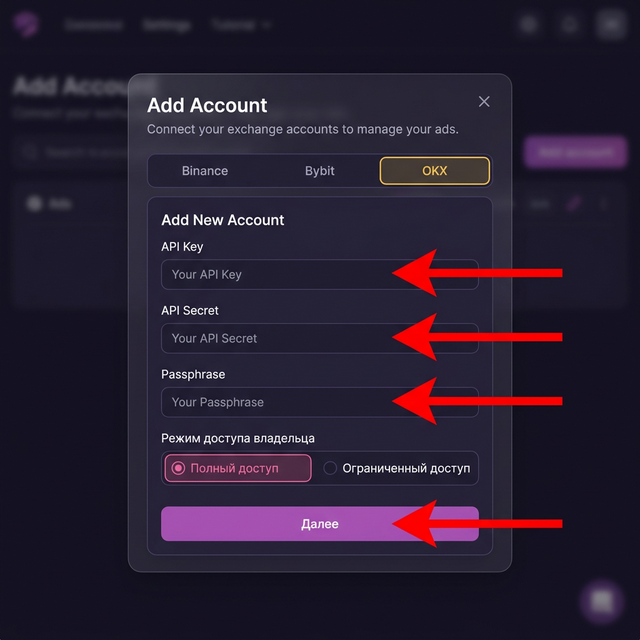
Back in Pilotbot, open Add Account, select the OKX tab, paste your API Key, Secret Key, and Passphrase, and click Confirm and add.
Your OKX account now appears in the sidebar. Next, set a strategy with the AI agent and turn the bot on for your ads.